
How to Teach Kids Computer Skills Effectively
“How does this picture move? Why does this sound play when I press this button? And does the computer think the way we do?”
So many questions pour out of a little mind that hasn’t even turned six yet — a curiosity far bigger than their age, and far wider than the screen in front of them.
The mother isn’t surprised. She knows perfectly well that this generation was born with technology in their hands, and that they don’t wait for anyone to tell them how to explore or learn. At the same time, she knows that randomly tapping buttons doesn’t build a skill.
Teaching computer skills doesn’t start with the power button. It starts with a parent’s awareness and their ability to turn their child’s curiosity into knowledge, and their screen time into thoughtful learning steps.
In this article, we walk through how to teach kids computer skills using simple, practical steps that let you introduce this world to your child in a way that suits their age and interests.
Which academic field does teaching kids computer skills fall under?
When we begin teaching children how to use a computer, we’re not just teaching them to operate a device — we’re opening a gateway to a complete field of study known as Computer Science, a broad academic discipline that brings together technology, logic, and creativity.
Computer Science is concerned with studying how data and information are processed, how software is designed, and how the applications we use every day are developed — from educational games to websites.
What makes this field special is that it’s taught as a multidisciplinary subject. It touches mathematics, statistics, engineering, and even life skills such as problem solving and critical thinking.
When we introduce this field to children, we simplify it into flexible concepts such as:
- how to think logically
- organizing steps
- linking cause and effect
- building a project from scratch
That’s why teaching kids computer skills is classified under computer science, but it also overlaps with what’s known as the STEM fields, serving as an early introduction to scientific thinking and innovation.
As a result, introducing a child to this field at an early age means training them in the skills of the future. Every time they use a drawing program, design a simple game, or program a movement in “Scratch,” they are playing, thinking like a little programmer, and learning how to build, experiment, fix, and start again.
How to set up the right environment for teaching your child to use a computer
Before we dive into how to teach kids computer skills, we first need to prepare the right environment that ensures a safe and enjoyable learning experience for the child.
First, choose a computer that suits the child’s age. It doesn’t have to be a high-end or expensive device — just one that’s easy to use and has educational programs designed for children.
Also make sure to set up a comfortable spot for the child, away from distractions so they can focus solely on learning. It’s important for the space to be in a quiet corner of the home, far from distracting noise such as the TV or guests.
Second, make sure to install parental control software. It lets you set the amount of screen time your child spends at the computer, helps avoid technology addiction, and keeps computer time balanced with other activities such as physical play or reading.
Finally, make sure the computer is at eye level so the child doesn’t have to hunch or stretch while sitting. Poor posture takes a toll on a child’s body and can cause back or neck pain over time, so using a suitable desk and chair from the start will reduce the likelihood of these health problems.
How to teach kids computer skills with practical steps
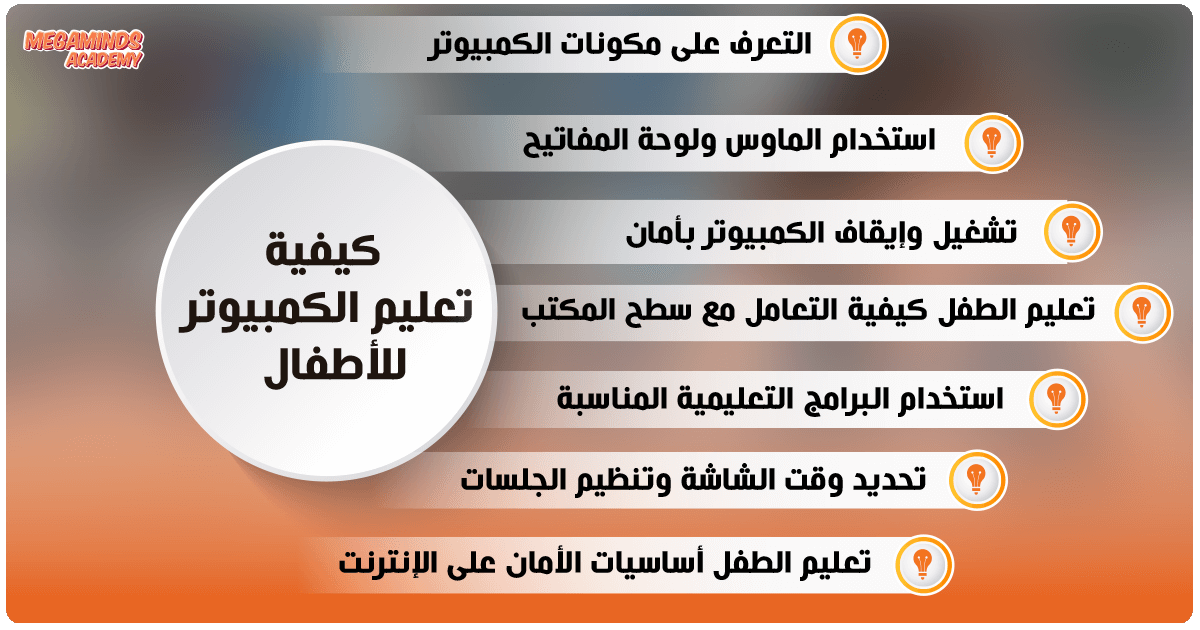
Now that we’ve prepared the right environment, it’s time to talk about how to teach kids computer skills in a way that’s practical, simple, and fun — so the child feels engaged and positive rather than feeling it’s a hard or boring task.
Getting to know the parts of a computer
The first step in any learning experience is getting to know the tools themselves, so start by teaching your child the basic parts of a computer, such as:
The screen
You can tell the child: “This screen is where you’ll see everything you do on the computer, like pictures, games, or text.” Let the child notice how the picture or text changes when you press different buttons.
The mouse
Explain to them simply that the mouse is the tool that helps you move around the screen, just like your car moves along the road.
The keyboard
Explain each key to your child one by one. Start by teaching the letters and numbers, and show them that these buttons are what they use to type letters and numbers — so if they want to write their name, they press the letters one after another.
You can start by teaching them simple words and writing their name or the name of a family member. Also explain that other keys such as “Enter” or “Spacebar” help move between lines or add a space between words.
The speakers
Explain to the child that the speakers let us hear sounds, like the sound of games or videos.
Using the mouse and keyboard
Once the child gets to know the parts of the computer and starts interacting with them confidently, the next step comes: teaching them how to control these parts.
Start with simple exercises for using the mouse, such as moving the cursor left and right, following a moving image, or selecting a particular shape from a set of pictures. These small exercises teach the child how to connect the movement of their hand with what they see on the screen.
After they master moving the cursor, you can teach them to click on items, step by step, without rushing. At some point you’ll notice the child starting to understand on their own when to press and when to let go.
Then comes the time for the keyboard, which may at first look like a row of similar buttons, but with practice it turns into something familiar.
Use interactive tools such as “Tux Typing” or “TypingClub.” They’re designed to teach without overwhelming, training the fingers to find their correct positions without making the child feel like they’re in a dictation lesson.
And so, little by little, the computer becomes something familiar in the child’s eyes.
Turning the computer on and off safely
Calmly and attentively, explain to them that pressing the power button should be a light touch, and that they need to wait until the screen fully appears — because every good thing needs its moment to take shape.
As for finishing up, this matters even more. Many children think that turning off the screen means shutting down the device, and here is where your role comes in to instill the steps for a safe shutdown: clicking the “Start” button, then choosing “Shut down,” and waiting until the screen turns off completely.
As small and simple as these details are, they teach the child order and attentiveness.
Teaching the child how to use the desktop
After the child gets used to turning on the device, they begin to encounter the desktop. Don’t rush to explain — just sit beside them and let them discover the computer’s first interface with open eyes and an eager mind.
Explain that every icon on the screen represents a program or a place. Tell them simply: “This icon is like a little door you open to step into a game, a video, or a drawing notebook.”
Point out the basic icons they’ll use most often, and don’t clutter the screen in front of them with dozens of shortcuts — a child doesn’t need visual crowding, but rather clarity and ease.
Train them to recognize icons by name, such as “the browser” for going online, or “the folder” for saving pictures, and teach them how to open these icons by double-clicking, then how to close windows when they’re done.
Using the right educational programs
At this age, a child isn’t looking for information as much as they’re looking for fun. That’s why choosing the right educational programs is a smart move that makes the process of teaching kids computer skills feel closer to play than to study.
Start with programs designed specifically for children, such as “Tux Paint” for drawing, or “Scratch Junior” for learning programming in a simplified way. These programs give a sense of accomplishment — the child draws, clicks, and moves, and sees an instant result for everything they do.
Be sure to sit with your child at first, not to control them, but to share the experience. Share a laugh when they succeed, or help them get past a moment of stumbling.
Show them that learning is a fun adventure with many stops along the way — some easy and some that take patience. Also be sure to download programs from trusted sources, and avoid distracting ads or games full of in-app purchases, because what matters now is building confidence, strengthening focus, and sparking their imagination so they form a healthy relationship with technology from the start.
Setting screen time and organizing sessions
When a child starts interacting with the computer, it becomes essential to set an appropriate time frame to ensure they benefit without feeling exhausted.
Teaching kids computer skills isn’t only about learning skills — it’s about teaching them how to manage time and resources. So setting screen time is one of the most important steps that helps a child organize their time between learning and play.
Start by setting a specific amount of time for computer use each day, preferably no more than an hour or less, while making sure this time is part of a fixed daily routine. For example, you could dedicate half an hour to learning and the other half to play or other tasks.
Also make sure the computer is in a suitable place, away from distractions such as the TV or other toys, while ensuring the room is well lit and the sitting posture is correct, so it doesn’t affect their physical health.
You can also set simple rules: such as taking a short break after every 15 minutes of use so they can move around and refresh their energy. And don’t forget to watch their behavior during these sessions, making sure that what they’re doing on the computer aligns with the learning goals.
With this simple balance between screen time and structure, the child will begin to interact with technology in a healthy way — through learning that’s balanced with play, without overusing it.
Teaching the child the basics of online safety
The moment the computer connects to the internet, it turns from a simple home device into a window open to the world. And here begins one of the most important stages of teaching kids computer skills: teaching them how to stay safe while browsing this vast world.
Just as we teach a child not to open the door to strangers, we must teach them not to open links or windows that could harm them. Start by explaining that the internet has many useful things, but it also contains things that aren’t appropriate.
Tell them there are rules, just like traffic laws, that protect them while using the internet, such as:
- keeping their password to themselves and not giving it to anyone, even their friends
- not opening any link or ad without asking permission
- not talking to people they don’t know
- always asking if a window appears that they don’t understand, or if someone asks them to share personal information
It’s also best to use programs made for children that include protection tools and content monitoring, while specifying the websites they’re allowed to visit — to protect them at an age when telling good from bad still needs constant guidance.
Tips on how to teach kids computer skills
To be able to teach your child computer skills, you need to follow several tips that will help you on this journey, the most notable of which are:
- Set simple goals for each session (for example: learning to use the mouse or typing letters)
- Use fun, interactive programs that suit your child’s age
- Set a fixed daily time for computer use (half an hour to an hour at most)
- Sit beside your child while they learn, and offer ongoing support and encouragement
- Monitor the content they’re exposed to, and make sure it’s age-appropriate
- Introduce them to the principles of digital safety in a simple, clear way
- Allow them to try and make mistakes, and treat every mistake as a chance to learn
- Don’t focus on how fast they learn, but on the child enjoying the journey
- Always use encouraging language, and avoid harsh criticism
- Be a role model yourself in using technology in a balanced and responsible way
At the end of the journey of teaching kids computer skills, it’s not about how many programs the child has learned, nor how fast they’ve learned to type, but about their ability to handle this new world with confidence, curiosity, and responsibility.
What matters is that you were the one who held their hand on the very first step, and stayed with them until they began to walk on their own along this digital path.
Remember that a child at this age doesn’t need a huge amount of information, but rather an encouraging environment full of reassurance and support — one that makes them feel that every new experience is worth trying, and every mistake is a chance to learn something new. Don’t pressure them, and don’t expect instant results. Take things simply, and share the experience with them as if you were discovering everything together for the first time.
Finally, give your child room to be creative, and leave them the freedom to experiment within safe boundaries — for this little device may well be the gateway through which they step into their future.